Network deployment
This Quick Start scenario assumes that you are installing the DFINITY Canister SDK for the first time and deploying the default project on the Internet Computer running remotely.
If you are only deploying projects in a local development environment, see the Local development scenario.
To get started, let’s build and deploy a simple Hello application that has just one function—called greet.
The greet function accepts one text argument and returns the result with a greeting similar to Hello, everyone! in a terminal if you run the application using the command-line or in an HTML page if you access the application in a browser.
Before you begin
Before you download and install this release of the DFINITY Canister SDK, verify the following:
-
You have an internet connection and access to a shell terminal on your local macOS or Linux computer.
Currently, the DFINITY Canister SDK only runs on computers with a macOS or Linux operating system.
-
You have
node.jsinstalled if you want to access the default front-end for the default project. -
You have ICP tokens or cycles available for you to use.
You must have cycles available to complete this tutorial. To get cycles, you must either convert ICP tokens to cycles or be provided cycles from another source, for example, from a canister controlled by another developer or from a third-party cycles provider. This tutorial assumes that you have an account with ICP tokens available and illustrates how to convert ICP tokens into cycles and transfer those cycles to a cycles wallet that you control.
For information about how to get ICP tokens, see How you can get ICP tokens. For an introduction to using the Network Nervous System application to manage ICP tokens, see Network nervous system application quick start. For information about using your default cycles wallet after you have created it, see Use the default cycles wallet.
This tutorial assumes you know how to perform common tasks—like opening a terminal and running commands—on your computer.
If you aren’t sure how to open a new terminal shell or how to install software packages like node.js, see Preliminary steps for newcomers.
If you are comfortable meeting the prerequisites without instructions, continue to Download and install.
Download and install
You can download the latest version of the DFINITY Canister Software Development Kit (SDK) directly from within a terminal shell on your local computer. If you have previously installed the DFINITY Canister SDK, you can skip this section and start with Create a new project.
To download and install:
-
Open a terminal shell on your local computer.
For example, open Applications, Utilities, then double-click Terminal or press ⌘+spacebar to open Search, then type
terminal. -
Download and install the DFINITY Canister SDK package by running the following command:
sh -ci "$(curl -fsSL https://sdk.dfinity.org/install.sh)"This command prompts you to read and accept the license agreement before installing the DFINITY execution command-line interface (CLI) and its dependencies on your local computer.
-
Type
yand press Return to continue with the installation.The command displays information about the components being installed on the local computer.
Verify the SDK is ready to use
If the installation script runs without any errors, everything you need to start developing programs that run on the Internet Computer blockchain will be available on your local computer.
To verify the SDK is ready to use:
-
Open a terminal shell on your local computer, if you don’t already have one open.
-
Check that you have the DFINITY execution command-line interface (CLI) installed and the
dfxexecutable is available in your PATH by running the following command:dfx --versionThe command displays version information for the
dfxcommand-line executable similar to the following:dfx 0.7.2
-
Preview usage information for the other
dfxcommand-line sub-commands by running the following command:dfx --helpThe command displays usage information for the
dfxparent command and its subcommands.
Create a new project
Applications for the Internet Computer start as projects.
You create projects using the dfx parent command and its subcommands.
For this tutorial, we’ll start with the default sample application to illustrate creating an application using the starter files in a project.
When you create a new project, the dfx command-line interface adds a default project directory structure to your workspace. We cover the template files that make up a project directory in the Explore the default project tutorial.
To create a new project for your first application:
-
Open a terminal shell on your local computer, if you don’t already have one open.
-
Create a new project named
helloby running the following command:dfx new helloThe
dfx new hellocommand creates a newhelloproject directory, template files, and a newhelloGit repository for your project.If you use a different project name instead of
hello, make note of the name you used. You’ll need to use that project name in place of thehelloproject name throughout these instructions. -
Change to your project directory by running the following command:
cd hello
Check the connection to the network
Before you can deploy your first project on the Internet Computer, you need to connect to the network gateway running remotely on a subnet that you can access. There is a reserved network alias that you can use to access the Internet Computer running remotely on nodes in data centers. The network alias is a system setting that’s defined internally, so there’s nothing you need to configure in your projects by default.
To check your connection to the Internet Computer network:
-
Check that you are in the root directory for your project, if needed.
-
Check the current status of the Internet Computer network and your ability to connect to it by running the following command for the network alias
ic:dfx ping ic -
Verify that the
dfx ping iccommand returns information about the Internet Computer network to which you are connecting.For example, you should see output similar to the following:
{
  "ic_api_version": "0.18.0"  "impl_hash": "d639545e0f38e075ad240fd4ec45d4eeeb11e1f67a52cdd449cd664d825e7fec"  "impl_version": "8dc1a28b4fb9605558c03121811c9af9701a6142"  "replica_health_status": "healthy"  "root_key": [48, 129, 130, 48, 29, 6, 13, 43, 6, 1, 4, 1, 130, 220, 124, 5, 3, 1, 2, 1, 6, 12, 43, 6, 1, 4, 1, 130, 220, 124, 5, 3, 2, 1, 3, 97, 0, 129, 76, 14, 110, 199, 31, 171, 88, 59, 8, 189, 129, 55, 60, 37, 92, 60, 55, 27, 46, 132, 134, 60, 152, 164, 241, 224, 139, 116, 35, 93, 20, 251, 93, 156, 12, 213, 70, 217, 104, 95, 145, 58, 12, 11, 44, 197, 52, 21, 131, 191, 75, 67, 146, 228, 103, 219, 150, 214, 91, 155, 180, 203, 113, 113, 18, 248, 71, 46, 13, 90, 77, 20, 80, 95, 253, 116, 132, 176, 18, 145, 9, 28, 95, 135, 185, 136, 131, 70, 63, 152, 9, 26, 11, 170, 174]
}
Confirm your developer identity and ledger account
All ICP token transactions are recorded in a ledger canister running on the Internet Computer. The ledger canister consists of account identifiers and balances for all ICP token holders.
Before you can transfer any ICP tokens you hold in your ledger account, you need to send a secure and properly-signed message that verifies your identity to the ledger and authorizes your developer identity to complete the transaction.
Depending on how you have set up custody for holding your ICP tokens, the hardware, software, and steps required to connect to the ledger and complete a transaction can vary.
For example, you might connect to the ledger and start a transaction from a hardware wallet, using a hardware security module (HSM) appliance, through the Network Nervous System (NNS) front-end application, or using the DFINITY Canister SDK dfx command-line interface.
Each approach presents a different interface for signing and sending messages to the ledger and representing your identity as an account holder.
About your developer identity
The first time you use the DFINITY Canister SDK, the dfx command-line tool creates a default developer identity for you. This identity is represented by a principal data type and a textual representation of the principal often referred to as your principal identifier.
This representation of your identity is similar to a Bitcoin or Ethereum address.
However, the principal associated with your developer identity is typically not the same as your account identifier in the ledger. The principal identifier and the account identifier are related—both provide a textual representation of your identity—but they use different formats.
Connect to the ledger to get account information
For the purposes of this tutorial—where there’s no hardware wallet or external application to connect to the ledger—we’ll use your developer identity to retrieve your ledger account identifier, then transfer ICP tokens from the ledger account identifier to a cycles wallet canister controlled by your developer identity.
To look up your account in the ledger:
-
Confirm the developer identity you are currently using by running the following command:
dfx identity whoamiIn most cases, you should see that you are currently using default` developer identity. For example:
default
-
View the textual representation of the principal for your current identity by running the following command:
dfx identity get-principalThis command displays output similar to the following:
tsqwz-udeik-5migd-ehrev-pvoqv-szx2g-akh5s-fkyqc-zy6q7-snav6-uqe
-
Get the account identifier for your developer identity by running the following command:
dfx ledger account-idThis command displays the ledger account identifier associated with your developer identity. For example, you should see output similar to the following:
03e3d86f29a069c6f2c5c48e01bc084e4ea18ad02b0eec8fccadf4487183c223
-
Check your account balance by running the following command:
dfx ledger --network ic balanceThis command displays the ICP token balance from the ledger account. For example, you should see output similar to the following:
10.00000000 ICP
Convert ICP tokens to cycles
Now that you have confirmed your account information and current ICP token balance, you can convert some of those ICP tokens to cycles and move them into a cycles wallet.
To transfer ICP tokens to create a cycles wallet:
-
Create a new canister with cycles by transferring ICP tokens from your ledger account by running a command similar to the following:
dfx ledger --network ic create-canister <principal-identifier> --amount <icp-tokens>This command converts the number of ICP tokens you specify for the
--amountargument into cycles, and associates the cycles with a new canister identifier controlled by the principal you specify.For example, the following command converts .25 ICP tokens into cycles and specifies the principal identifier for the default identity as the controller of the new canister:
dfx ledger --network ic create-canister tsqwz-udeik-5migd-ehrev-pvoqv-szx2g-akh5s-fkyqc-zy6q7-snav6-uqe --amount .25
If the transaction is successful, the ledger records the event and you should see output similar to the following:
Transfer sent at BlockHeight: 20
Canister created with id: "gastn-uqaaa-aaaae-aaafq-cai"
-
Install the cycles wallet code in the newly-created canister placeholder by running a command similar to the following:
dfx identity --network ic deploy-wallet <canister-identifer>For example:
dfx identity --network ic deploy-wallet gastn-uqaaa-aaaae-aaafq-cai
This command displays output similar to the following:
Creating a wallet canister on the ic network.
The wallet canister on the "ic" network for user "default" is "gastn-uqaaa-aaaae-aaafq-cai"
Validate your cycles wallet
After you convert ICP tokens to cycles, you can validate the cycles wallet canister and check your current cycles balance.
To validate your cycles wallet:
-
Verify the canister identifier for the cycles wallet you deployed by running the following command:
dfx identity --network ic get-walletThe command displays the canister identifier for your cycles wallet with output similar to the following:
gastn-uqaaa-aaaae-aaafq-cai
-
Check that your cycles wallet canister is properly configured and holds a balance of cycles by running a command similar to the following:
dfx wallet --network ic balanceThe command returns the balance for the your cycles wallet. For example:
15430122328028812 cycles.
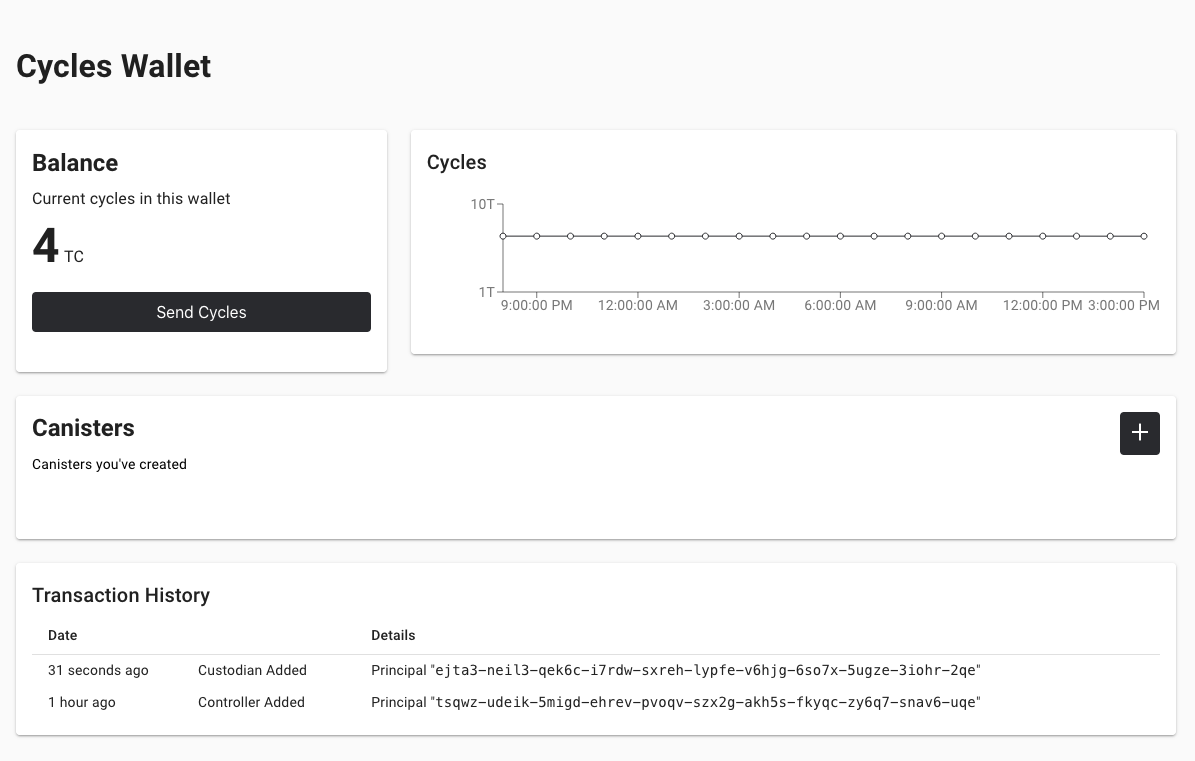
You can also access your default cycles wallet in a web browser by using a URL similar to the following:
https://<WALLET-CANISTER-ID>.raw.ic0.app
The first time you access the application, you see a notice that you are using an Anonymous Device and are prompted to authenticate your identity, authorize access to the wallet, and register your device.
-
Click Authenticate to continue to the Internet Identity service.
-
Enter your User Number if you have previously registered an identity or register with the service as a new user.
For more information about the Internet Identity service and how to register multiple authentication devices and methods, see How to use the Internet Identity service.
-
Authenticate using your user number and the authentication method—for example, a security key or fingerprint—you have registered.
-
Click Proceed to access to the default cycles wallet application.
-
Register the device you are using for this session by copying the command displayed in the Register Device page and running it in a terminal.
For example, call the
authorizemethod for the cycles wallet canister with a command similar to the following:dfx canister --no-wallet --network ic call "gastn-uqaaa-aaaae-aaafq-cai" authorize '(principal "ejta3-neil3-qek6c-i7rdw-sxreh-lypfe-v6hjg-6so7x-5ugze-3iohr-2qe")'
Be sure that the command you copy has the
--no-walletoption and the correct network (ic) alias. You should recognize the canister identifier—in this example,gastn-uqaaa-aaaae-aaafq-cai—as the cycles wallet associated with your identity. If this is your first wallet on the network, however, you might not recognize the principal being authorized. The use of a different principal is the expected behavior in this case.When the browser refreshes after running the
authorizecommand, the cycles wallet for your principal account is displayed. -
View your cycles balance and activity in the browser.
For example:
For more information about the commands and methods available for working with the default cycles wallet, see Use the default cycles wallet.
Register, build, and deploy the application
After you have validated your cycles wallet balance, you can register, build, and deploy your sample application.
To deploy your first application on the Internet Computer:
-
In your terminal shell, check that you are still in the root directory for your project.
-
Ensure that
nodemodules are available in your project directory, if needed, by running the following command:npm installFor more information about this step, see Ensuring node is available in a project.
-
Register, build, and deploy your first application by running the following command:
dfx deploy --network icThe
--networkoption specifies the network alias or URL for deploying the application. This option is required to install on the Internet Computer running remotely.The
dfx deploycommand output displays information about the operations it performs.For example, this step registers two network-specific identifiers—one for the
hellomain program and one for thehello_assetsfront-end user interface—and installation information similar to the following:Deploying all canisters. Creating canisters... Creating canister "hello"... "hello" canister created on network "ic" with canister id: "5o6tz-saaaa-aaaaa-qaacq-cai" Creating canister "hello_assets"... "hello_assets" canister created on network "ic" with canister id: "5h5yf-eiaaa-aaaaa-qaada-cai" Building canisters... Building frontend... Installing canisters... Installing code for canister hello, with canister_id 5o6tz-saaaa-aaaaa-qaacq-cai Installing code for canister hello_assets, with canister_id 5h5yf-eiaaa-aaaaa-qaada-cai Authorizing our identity (default) to the asset canister... Uploading assets to asset canister... /index.html 1/1 (472 bytes) /index.html (gzip) 1/1 (314 bytes) /index.js 1/1 (260215 bytes) /index.js (gzip) 1/1 (87776 bytes) /main.css 1/1 (484 bytes) /main.css (gzip) 1/1 (263 bytes) /sample-asset.txt 1/1 (24 bytes) /logo.png 1/1 (25397 bytes) /index.js.map 1/1 (842511 bytes) /index.js.map (gzip) 1/1 (228404 bytes) /index.js.LICENSE.txt 1/1 (499 bytes) /index.js.LICENSE.txt (gzip) 1/1 (285 bytes) Deployed canisters.
If you didn’t convert enough ICP tokens to cycles to complete the operation, you can add cycles to your cycles wallet by running a command similar to the following:
dfx ledger --network ic top-up gastn-uqaaa-aaaae-aaafq-cai --amount 1.005
This command converts an additional
1.005ICP tokens to cycles for thegastn-uqaaa-aaaae-aaafq-caicycles wallet identifier. The command returns output similar to the following:Transfer sent at BlockHeight: 81520 Canister was topped up!
-
Call the
hellocanister and the predefinedgreetfunction by running the following command:dfx canister --network ic call hello greet everyoneLet’s take a closer look at this example:
-
Using the
--network icoption indicates that the canister you want to call is deployed on theicnetwork. Theicnetwork alias is an internally-reserved alias for accessing the Internet Computer. -
Note that the
--network icoption must precede the operation subcommand, which, in this case, is thedfx canister callcommand. -
The
helloargument specifies the name of the canister you want to call. -
The
greetargument specifies the name of the function you want to call in thehellocanister. -
The text string
everyoneis the argument that you want to pass to thegreetfunction.
-
-
Verify the command displays the return value of the
greetfunction.For example:
("Hello, everyone!") -
Rerun the
dfx wallet balancecommand or refresh the browser to see your new cycle balance and recent activity.
Test the application front-end
Now that you have verified that your application has been deployed and tested its operation using the command line, let’s verify that you can access the front-end using your web browser.
To access the application front-end:
-
Open a browser.
-
Navigate to the front-end for the application using a URL that consists of the
hello_assetsidentifier and theboundary.ic0.appsuffix.If you didn’t make a note of the canister identifier, you can look it up by running the following command:
dfx canister --network ic id hello_assetsFor example, the full URL should look similar to the following:
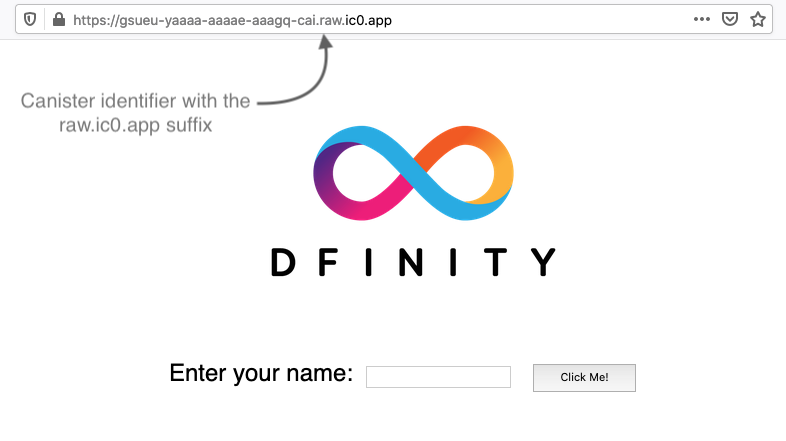
https://gsueu-yaaaa-aaaae-aaagq-cai.raw.ic0.app
Navigating to this URL displays the HTML entry page for the template application. For example:
-
Type a greeting, then click Click Me to return the greeting.
Next steps
Now that you have seen how to deploy an application on the Internet Computer network, you are ready to develop and deploy programs of your own.
You can find more detailed examples and tutorials to help you learn about how to use Motoko and how to develop applications for the Internet Computer throughout the documentation.
Here are some suggestions for where to go next:
-
Tutorials to explore building front-end and back-end applications in a local development environment.
-
What is Candid? to learn how the Candid interface description language enables service interoperability and composability.
-
Motoko at-a-glance to learn about the features and syntax for using Motoko.