Add access control with identities
Applications often require role-based permissions to control the operations different users can perform.
To illustrate how to create and switch between user identities, this tutorial creates a simple program that displays a different greeting for users who are assigned to different roles.
In this example, there are three named roles—owner, admin, and authorized.
-
Users who are assigned an
adminrole see a greeting that displaysYou have a role with administrative privileges. -
Users who are assigned an
authorizedrole see a greeting that displaysWould you like to play a game?. -
Users who are not assigned one of these roles see a greeting that displays
Nice to meet you!.
In addition, only the user identity that initialized the canister is assigned the owner role and only the owner and admin roles can assign roles to other users.
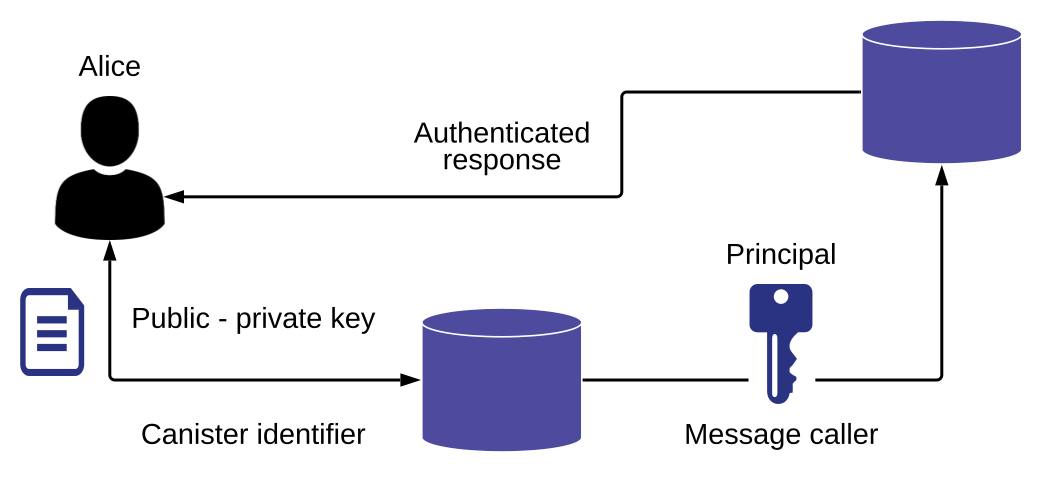
At a high-level, each user has a public/private key pair. The public key combines with the canister identifier the user accesses forms a security principal that can then be used as a message caller to authenticate function calls made to the canister running on the Internet Computer. The following diagram provides a simplified view of how user identities authenticate message callers.
Before you begin
Before starting the tutorial, verify the following:
-
You have downloaded and installed the DFINITY Canister SDK package as described in Download and install.
-
You have run at least one command that resulted in your
defaultuser identity being created. Your default user identity is stored globally for all projects in the$HOME/.config/dfx/identity/directory. -
You have installed the Visual Studio Code plugin for Motoko as described in Install the language editor plug-in if you are using Visual Studio Code as your IDE.
-
You have stopped any Internet Computer network processes running on the local computer.
Create a new project
To create a new project directory for testing access control and switching user identities:
-
Open a terminal shell on your local computer, if you don’t already have one open.
-
Change to the folder you are using for your Internet Computer projects, if you are using one.
-
Create a new project by running the following command:
dfx new access_hello -
Change to your project directory by running the following command:
cd access_hello
Modify the default program
For this tutorial, you are going to replace the template source code file with a program that has functions for assigning and retrieving roles.
To modify the default program:
-
Open the
src/access_hello/main.mofile in a text editor and delete the existing content. -
Copy and paste the following sample code into the file:
// Import base modules
import AssocList "mo:base/AssocList";
import Error "mo:base/Error";
import List "mo:base/List";

shared({ caller = initializer }) actor class() {

    // Establish role-based greetings to display
    public shared({ caller }) func greet(name : Text) : async Text {
        if (has_permission(caller, #assign_role)) {
            return "Hello, " # name # ". You have a role with administrative privileges."
        } else if (has_permission(caller, #lowest)) {
            return "Welcome, " # name # ". You have an authorized account. Would you like to play a game?";
        } else {
            return "Greetings, " # name # ". Nice to meet you!";
        }
    };

    // Define custom types
    public type Role = {
        #owner;
        #admin;
        #authorized;
    };

    public type Permission = {
        #assign_role;
        #lowest;
    };

    private stable var roles: AssocList.AssocList<Principal, Role> = List.nil();
    private stable var role_requests: AssocList.AssocList<Principal, Role> = List.nil();

    func principal_eq(a: Principal, b: Principal): Bool {
        return a == b;
    };

    func get_role(pal: Principal) : ?Role {
        if (pal == initializer) {
            ?#owner;
        } else {
            AssocList.find<Principal, Role>(roles, pal, principal_eq);
        }
    };

    // Determine if a principal has a role with permissions
    func has_permission(pal: Principal, perm : Permission) : Bool {
        let role = get_role(pal);
        switch (role, perm) {
            case (?#owner or ?#admin, _) true;
            case (?#authorized, #lowest) true;
            case (_, _) false;
        }
    };

    // Reject unauthorized user identities
    func require_permission(pal: Principal, perm: Permission) : async () {
        if ( has_permission(pal, perm) == false ) {
            throw Error.reject( "unauthorized" );
        }
    };

    // Assign a new role to a principal
    public shared({ caller }) func assign_role( assignee: Principal, new_role: ?Role ) : async () {
        await require_permission( caller, #assign_role );

        switch new_role {
            case (?#owner) {
                throw Error.reject( "Cannot assign anyone to be the owner" );
            };
            case (_) {};
        };
        if (assignee == initializer) {
            throw Error.reject( "Cannot assign a role to the canister owner" );
        };
        roles := AssocList.replace<Principal, Role>(roles, assignee, principal_eq, new_role).0;
        role_requests := AssocList.replace<Principal, Role>(role_requests, assignee, principal_eq, null).0;
    };

    public shared({ caller }) func request_role( role: Role ) : async Principal {
        role_requests := AssocList.replace<Principal, Role>(role_requests, caller, principal_eq, ?role).0;
        return caller;
    };

    // Return the principal of the message caller/user identity
    public shared({ caller }) func callerPrincipal() : async Principal {
        return caller;
    };

    // Return the role of the message caller/user identity
    public shared({ caller }) func my_role() : async ?Role {
        return get_role(caller);
    };

    public shared({ caller }) func my_role_request() : async ?Role {
        AssocList.find<Principal, Role>(role_requests, caller, principal_eq);
    };

    public shared({ caller }) func get_role_requests() : async List.List<(Principal,Role)> {
        await require_permission( caller, #assign_role );
        return role_requests;
    };

    public shared({ caller }) func get_roles() : async List.List<(Principal,Role)> {
        await require_permission( caller, #assign_role );
        return roles;
    };
};
Let’s take a look at a few key elements of this program:
-
You might notice that the
greetfunction is a variation on thegreetfunction you have seen in previous tutorials.In this program, however, the
greetfunction uses a message caller to determine the permissions that should be applied and, based on the permissions associated with the caller, which greeting to display. -
The program defines two custom types—one for
Rolesand one forPermissions. -
The
assign_rolesfunction enables the message caller to assign a role to the principal associated with an identity. -
The
callerPrincipalfunction enables you to return the principal associated with an identity. -
The
my_rolefunction enables you to return the role that is associated with an identity.
-
-
Save your changes and close the
main.mofile to continue.
Start the local network
Before you can build the access_hello project, you need to connect to the Internet Computer network either running locally in your development environment or running remotely on a subnet that you can access.
To start the network locally:
-
Open a new terminal window or tab on your local computer.
-
Navigate to the root directory for your project, if necessary.
-
Start the Internet Computer network on your local computer by running the following command:
dfx start --backgroundAfter the local Internet Computer network completes its startup operations, you can continue to the next step.
Register, build, and deploy the application
After you connect to the Internet Computer network running locally in your development environment, you can register, build, and deploy your application in a single step by running the dfx deploy command.
You can also perform each of these steps independently using separate dfx canister create, dfx build, and dfx canister install commands.
To deploy the application locally:
-
Check that you are still in the root directory for your project, if needed.
-
Register, build, and deploy the
access_helloback-end program by running the following command:dfx deploy access_helloCreating a wallet canister on the local network. The wallet canister on the "local" network for user "default" is "rwlgt-iiaaa-aaaaa-aaaaa-cai" Deploying: access_hello Creating canisters... Creating canister "access_hello"... "access_hello" canister created with canister id: "rrkah-fqaaa-aaaaa-aaaaq-cai" Building canisters... Installing canisters... Installing code for canister access_hello, with canister_id rrkah-fqaaa-aaaaa-aaaaq-cai Deployed canisters.
Check the current identity context
Before we create any additional identities, let’s review the principal identifiers associated with your default identity and the cycles wallet for your default identity.
On the Internet Computer, a principal is the internal representative for a user, canister, node, or subnet. The textual representation for a principal is the external identifier you see displayed with working with the principal data type.
To review your current identity and principle:
-
Verify the currently-active identity by running the following command:
dfx identity whoamiThe command displays output similar to the following:
default
-
Check the principal for the
defaultuser identity by running the following command:dfx identity get-principalThe command displays output similar to the following:
zen7w-sjxmx-jcslx-ey4hf-rfxdq-l4soz-7ie3o-hti3o-nyoma-nrkwa-cqe
-
Check the role associated with the
defaultuser identity by running the following command:dfx canister --wallet=$(dfx identity get-wallet) call access_hello my_roleThe command displays output similar to the following:
(opt variant { owner })
Create a new user identity
To begin testing the access controls in our program, let’s create some new user identities and assign those users to different roles.
To create a new user identity:
-
Check that you are still in your project directory, if needed.
-
Create a new administrative user identity by running the following command:
dfx identity new ic_adminThe command displays output similar to the following:
Creating identity: "ic_admin".
Created identity: "ic_admin".
-
Call the
my_rolefunction to see that your new user identity has not been assigned to any role.dfx --identity ic_admin canister call access_hello my_roleThe command displays output similar to the following:
Creating a wallet canister on the local network.
The wallet canister on the "local" network for user "ic_admin" is "ryjl3-tyaaa-aaaaa-aaaba-cai"
(null)
-
Switch your currently-active identity context to use the new
ic_adminuser identity and display the principal associated with theic_adminuser by running the following command:dfx identity use ic_admin && dfx identity get-principalThe command displays output similar to the following:
Using identity: "ic_admin".
c5wa6-3irl7-tuxuo-4vtyw-xsnhw-rv2a6-vcmdz-bzkca-vejmd-327zo-wae
-
Check the principal used to call the
access_hellocanister by running the following command:dfx canister call access_hello callerPrincipalThe command displays output similar to the following:
(principal "ryjl3-tyaaa-aaaaa-aaaba-cai")
By default, the cycles wallet identifier is the principal used to call the methods in the
access_hellocanister. To illustrate access control, however, we want to use the principal associated with the user context, not the cycles wallet. Before we get to that step, though, let’s assign a role to theic_adminuser. To do that, we need to switch to thedefaultuser identity that has theownerrole.
Assign a role to an identity
To assign the admin role to the ic_admin identity:
-
Switch your currently-active identity context to use the
defaultuser identity by running the following command:dfx identity use default -
Assign the
ic_adminprincipal theadminrole by running a command similar to the following using Candid syntax:dfx canister --wallet=$(dfx identity get-wallet) call access_hello assign_role '((principal "c5wa6-3irl7-tuxuo-4vtyw-xsnhw-rv2a6-vcmdz-bzkca-vejmd-327zo-wae"),opt variant{admin})'
Be sure to replace the principal hash with the one returned by the dfx identity get-principal command for the ic_admin identity.
|
+
Optionally, you can rerun the command to call the my_role function to verify the role assignment.
+
dfx --identity ic_admin canister call access_hello my_role+ The command displays output similar to the following:
+
(opt variant { admin })
-
Call the
greetfunction using theic_adminuser identity that you just assigned theadminrole by running the following command:dfx --identity ic_admin canister call access_hello greet "Internet Computer Admin"The command displays output similar to the following:
(
  "Hello, Internet Computer Admin. You have a role with administrative privileges.",
)
Add an authorized user identity
At this point, you have a default user identity with the owner role and an ic_admin user identity with the admin role.
Let’s add another user identity and assign it to the authorized role.
For this example, however, we’ll use an environment variable to store the user’s principal.
To add a new authorized user identity:
-
Check that you are still in your project directory, if needed.
-
Create a new authorized user identity by running the following command:
dfx identity new alice_authThe command displays output similar to the following:
Creating identity: "alice_auth".
Created identity: "alice_auth".
-
Switch your currently-active identity context to use the new
alice_authuser identity by running the following command:dfx identity use alice_auth -
Store the principal for the
alice_authuser in an environment variable by running the following command:ALICE_ID=$(dfx identity get-principal)You can verify the principal stored by running the following command:
echo $ALICE_IDThe command displays output similar to the following:
b5quc-npdph-l6qp4-kur4u-oxljq-7uddl-vfdo6-x2uo5-6y4a6-4pt6v-7qe
-
Use the
ic_adminidentity to assign theauthorizedrole toalice_authby running the following command:dfx --identity ic_admin canister call access_hello assign_role "(principal \"$ALICE_ID\", opt variant{authorized})" -
Call the
my_rolefunction to verify the role assignment.dfx --identity alice_auth canister call access_hello my_roleThe command displays output similar to the following:
(opt variant { authorized }) -
Call the
greetfunction using thealice_authuser identity that you just assigned theauthorizedrole by running the following command:dfx canister call access_hello greet "Alice"The command displays output similar to the following:
(
  "Welcome, Alice. You have an authorized account. Would you like to play a game?",
)
Add an unauthorized user identity
You have now seen a simple example of creating users with specific roles and permissions. The next step is to create a user identity that is not assigned to a role or given any special permissions.
To add an unauthorized user identity:
-
Check that you are still in your project directory, if needed.
-
Check your currently-active identity, if needed, by running the following command:
dfx identity whoami -
Create a new user identity by running the following command:
dfx identity new bob_standardThe command displays output similar to the following:
Creating identity: "bob_standard".
Created identity: "bob_standard".
-
Store the principal for the
bob_standarduser in an environment variable by running the following command:BOB_ID=$(dfx --identity bob_standard identity get-principal) -
Attempt to use the
bob_standardidentity to assign a role.dfx --identity bob_standard canister call access_hello assign_role "(principal \"$BOB_ID\", opt variant{authorized})"This command returns an
unauthorizederror. -
Attempt to use the
defaultuser identity to assignbob_standardtheownerrole by running the following command:dfx --identity default canister --wallet=$(dfx --identity default identity get-wallet) call access_hello assign_role "(principal \"$BOB_ID\", opt variant{owner})"This command fails because users cannot be assigned the
ownerrole. -
Call the
greetfunction using thebob_standarduser identity by running the following command:dfx --identity bob_standard canister --no-wallet call access_hello greet "Bob"The command displays output similar to the following:
("Greetings, Bob. Nice to meet you!")
Set the user identity for multiple commands
So far, you have seen how to create and switch between user identities for individual commands. You can also specify a user identity you want to use, then run multiple commands in the context of that user identity.
To run multiple commands under one user identity:
-
Check that you are still in your project directory, if needed.
-
List the user identities currently available by running the following command:
dfx identity listThe command displays output similar to the following with an asterisk indicating the currently-active user identity.
alice_auth
bob_standard
default *
ic_admin
In this example, the
defaultuser identity is used unless you explicitly select a different identity. -
Select a new user identity from the list and make it the active user context by running a command similar to the following:
dfx identity use ic_admin+ The command displays output similar to the following:
Using identity: "ic_admin".
If you rerun the
dfx identity listcommand, theic_adminuser identity displays an asterisk to indicate it is the currently active user context.You can now run commands using the selected user identity without specifying
--identityon the command-line.
Stop the local network
After you finish experimenting with the program and using identities, you can stop the local Internet Computer network so that it doesn’t continue running in the background.
To stop the local network:
-
In the terminal that displays network operations, press Control-C to interrupt the local network process.
-
Stop the Internet Computer network by running the following command:
dfx stop